 First, you will need to download and install the BUTT Encoder: Butt V0.1.31 - Butt V0.1.46 - Mac OS X Disk Image
This is currently available for Windows.
Note: Versions of the BUTT Encoder

Step 1
When you start Butt Encoder for the first time, it automatically creates a default configuration file in your computers home directory. Any changes that you later make will then get written to this file. Click setting to add your stream info.
 |
Step 2
Within the 'BUTT Settings' which opens within a new window, under the 'Main' tab you can edit the following information:
Server:
To add a server, click on the 'ADD' button underneath the 'Server' tab, this will then open up another new window. Here you can specify your server details.
Name: Here you can name your server for the drop down list. If you use more than one server account and type this allows you to quickly change between them.
Address: Here you input your servers hostname.
Port: Here you input your provided port number.
Password: Here you input your provided port number. The password is on the Facebook sunriseFm Dj Info page.
Once you have completed the server information click on the 'Save' button to add this to the server list. The 'Edit' button under 'Server' on the 'Main' tab can be used to alter this information at a later time if required and the 'Delete' button can be used to remove any that you no longer require.
Stream Infos:
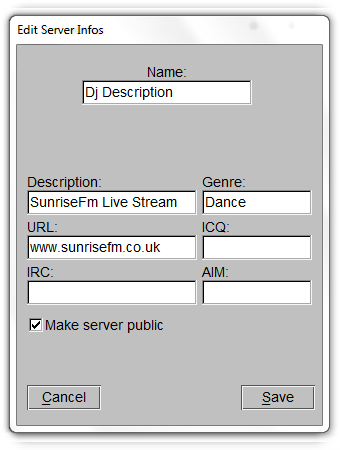
This is where you can edit your stream information such as the stream title, description, genre, website URL and various instant messenger contact details.
Click on the 'Add' button underneath the 'Stream Infos' tab to add a servers stream information. As with the server accounts, you can create multiple stream information settings which can be useful if you use more than one server account for streaming. The 'Edit' button can be used to alter this information at a later time if required and the 'Delete' button can be used to remove any that you no longer require.
There is a check box for 'Make Server Public', we recommend that you tick this box.
Server:To add a server, click on the 'ADD' button underneath the 'Server' tab, this will then open up another new window. Here you can specify your server details.
Name: Here you can name your server for the drop down list. If you use more than one server account and type this allows you to quickly change between them.
Address: Here you input your servers hostname.
Port: Here you input your provided port number.
Password: Here you input your provided port number. The password is on the Facebook sunriseFm Dj Info page.
Once you have completed the server information click on the 'Save' button to add this to the server list. The 'Edit' button under 'Server' on the 'Main' tab can be used to alter this information at a later time if required and the 'Delete' button can be used to remove any that you no longer require.
Stream Infos:This is where you can edit your stream information such as the stream title, description, genre, website URL and various instant messenger contact details.
Click on the 'Add' button underneath the 'Stream Infos' tab to add a servers stream information. As with the server accounts, you can create multiple stream information settings which can be useful if you use more than one server account for streaming. The 'Edit' button can be used to alter this information at a later time if required and the 'Delete' button can be used to remove any that you no longer require.
There is a check box for 'Make Server Public', we recommend that you tick this box.
 |
 |
 |
Step 3
Under the 'Audio' tab you can edit the following information:
Audio:
Please ensure you select your desired soundcard.
Please copy all other setting as shouwn below. You will notice that you can record your own shown through BUTT. ensure the settings are set as shown below.
See image 2 in this section where to save your recordings. You can select start recording when connected.
Audio:Please ensure you select your desired soundcard.
Please copy all other setting as shouwn below. You will notice that you can record your own shown through BUTT. ensure the settings are set as shown below.
See image 2 in this section where to save your recordings. You can select start recording when connected.
 |
 |
Step 4
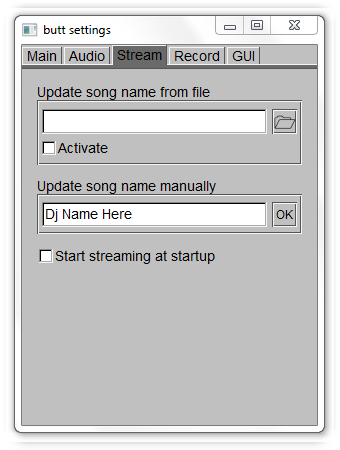
Under the 'Stream' tab you can edit the following information:
Stream:
This is where you put the dj title here.
Update song name from file: Create a text file with your dj title i.e. on the desktop, search for the file your created and click activte..
Update song name manually: Enter your dj name and when live, you click ok.
When you have completed all of your settings, click on the 'Save' button on the main tab, BUTT Encoder will then save all of the changes that you have made. These changes will get written to the default configuration file that we mentioned earlier.
Stream:This is where you put the dj title here.
Update song name from file: Create a text file with your dj title i.e. on the desktop, search for the file your created and click activte..
Update song name manually: Enter your dj name and when live, you click ok.
When you have completed all of your settings, click on the 'Save' button on the main tab, BUTT Encoder will then save all of the changes that you have made. These changes will get written to the default configuration file that we mentioned earlier.
 |
Step 5
When you have completed adding your server and editing all of your stream information, to start streaming with BUTT Encoder just click on the 'Play' button on the main interface. This will then connect to the specified server. The yellow play symbol in the main interface will be lit up once BUTT Encoder is connected to a server. The 'Stop' button can then be used at anytime to disconnect from the server. We recommend always keeping an eye on your levels with its built in VU meter to make sure that the audio signal is never in the red and causing any kind of distortion.
 |