 Download Winamp: Download Link
SHOUTcast DSP 2.2.3 for Winamp: Download Link
Download Winamp: Download Link
SHOUTcast DSP 2.2.3 for Winamp: Download LinkThis is currently available for Windows.
Note: This version of the DSP plug-in will only work on Winamp 5.5.

Step 1
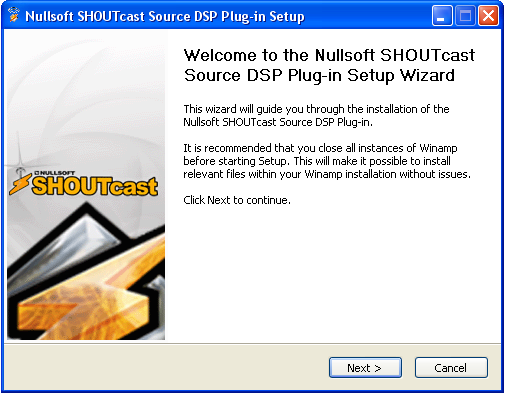
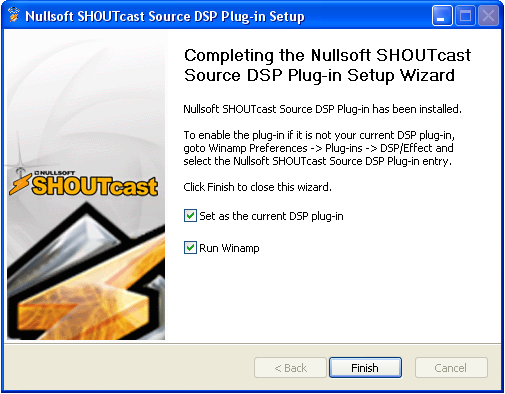
Once the download has completed, you will need to install the software.
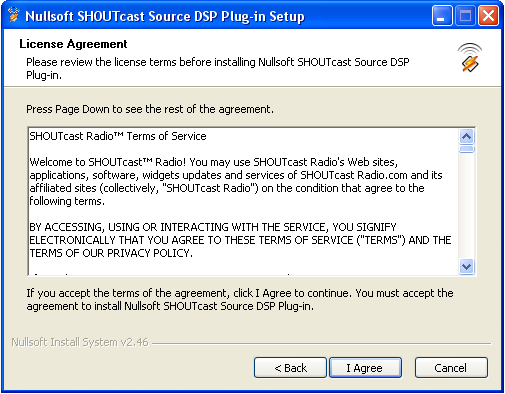
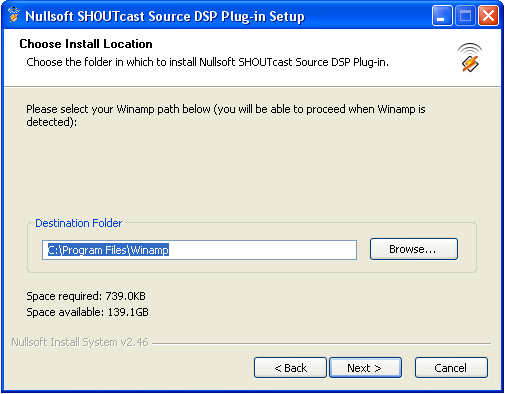
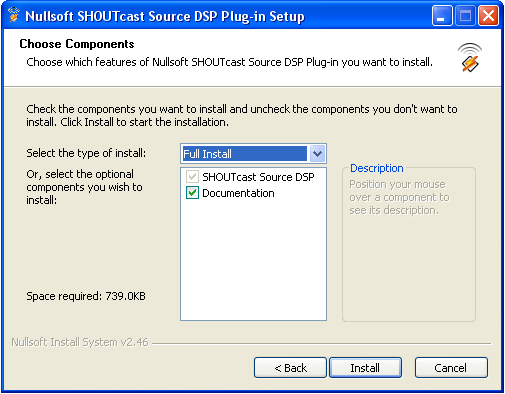
Verify that Winamp is not running, then double click on the installer that you downloaded and follow the on-screen instructions. When the installation process has completed, start Winamp and open your preferences. Click on "DSP/Effects" in the menu to the left, and highlight "Nullsoft SHOUTcast Source DSP v2.2.3 [dsp_sc.dll]". When you have selected it, a new window should pop up. You may now close your preferences window.
Verify that Winamp is not running, then double click on the installer that you downloaded and follow the on-screen instructions. When the installation process has completed, start Winamp and open your preferences. Click on "DSP/Effects" in the menu to the left, and highlight "Nullsoft SHOUTcast Source DSP v2.2.3 [dsp_sc.dll]". When you have selected it, a new window should pop up. You may now close your preferences window.
 |
 |
 |
 |
 |
Step 2
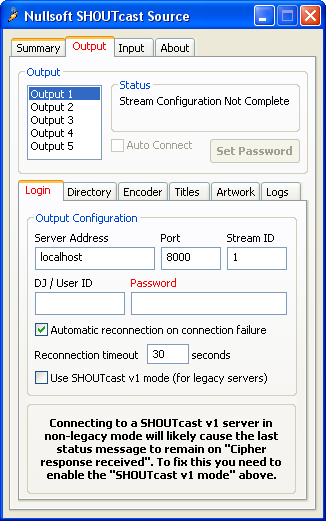
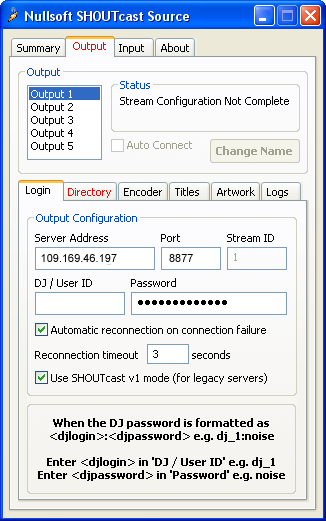
Select the "Output" tab at the top of your DSP window. Select "Output 1" under the selection box, and fill in all of the following fields properly.
Address:
Here, you need to enter the server details. It should look something like "a10.streamgb.com". Make sure that you put in the proper server, or else you will not be able to connect.
Port:
In this field, you need to enter the port number. Once again, this must be set properly or else you will be unable to connect.
Password:
You need to set the password that will be given to you by the owner, or the one that you changed it to. Enter this here, and make sure there are no mistakes.
Use SHOUTcast v1 mode (for legacy servers):
Last, but not least, you need to select option "Use SHOUTcast v1 mode (for legacy server)" to allow encoder to connect on SHOUTcast Server v.1.9.8 (Current Stable Version).
Address:Here, you need to enter the server details. It should look something like "a10.streamgb.com". Make sure that you put in the proper server, or else you will not be able to connect.
Port:In this field, you need to enter the port number. Once again, this must be set properly or else you will be unable to connect.
Password:You need to set the password that will be given to you by the owner, or the one that you changed it to. Enter this here, and make sure there are no mistakes.
Use SHOUTcast v1 mode (for legacy servers):Last, but not least, you need to select option "Use SHOUTcast v1 mode (for legacy server)" to allow encoder to connect on SHOUTcast Server v.1.9.8 (Current Stable Version).
 |
 |
Step 3
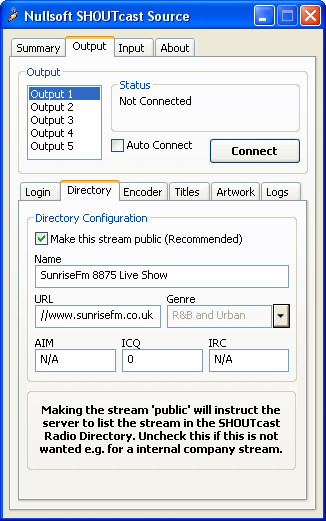
Directory setup (streaming server display details):Click on the "Directory" tab right above where you entered all of the previous information.
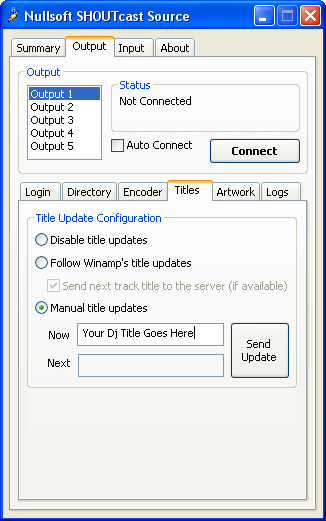
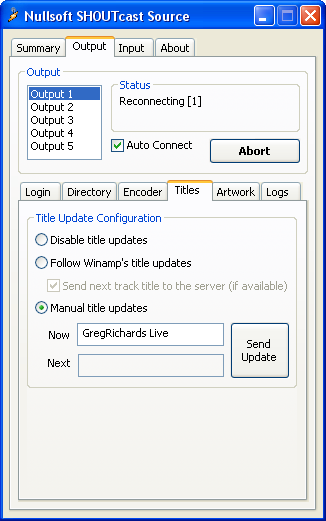
To ensure the station is listed in the SHOUTcast directory, check the "Make this server public" box, and fill in all of the information below the box in a proper manner. Be sure to check the "Manual Title Updates" and enter you dj name followed by Live on the end, this will enable the title to be updated on the website and shoutcast.
 |
 |
Step 4
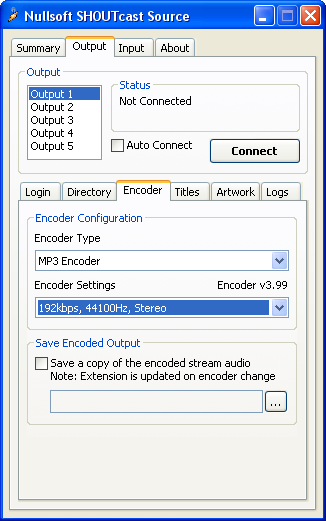
Encoder Settings (select streaming audio format)Select the "Encoder" tab at the top of your Output DSP window.
Make sure under the selection box, you have selected "Encoder 1".
The Encoder Type is MP3.
In the Encoder Settings dropdown, select the bitrate that you ordered from us, and be sure that the line you selected has "Stereo" at the end, so individual sounds will come out of both of your listeners speakers.
Note: If you stream at a bitrate higher than what you have ordered, we will send you a warning email, and your account may be deactivated.
 |
Step 5
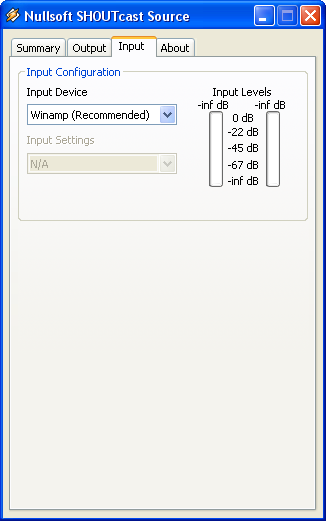
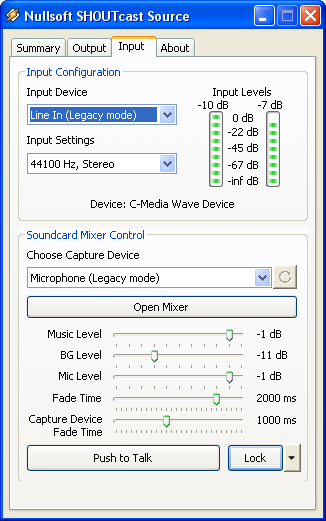
Input settings (select the input audio source)Select the "Input" tab at the top of your DSP window. Unless you have specific soundcard input settings, or want to talk on your stream, select "Winamp" at the Input Device. As every soundcard is different and individual, we cannot give any tutorials for the Soundcard Input.
You can choose Soundcard Input option if you want to take audio signal from External Source over the Line In.
 |
 |
Step 6
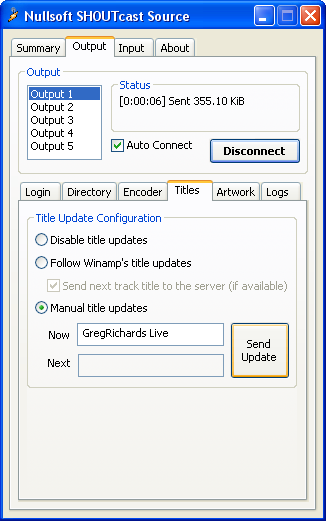
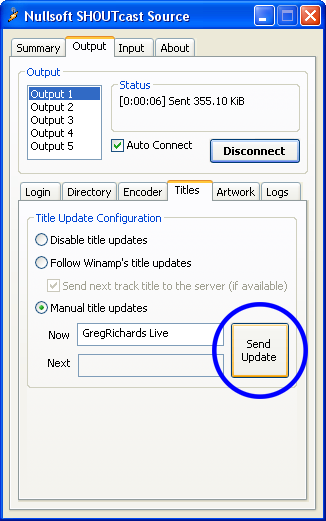
Go back to the "Output" tab in your DSP window. Make sure "Output 1" is selected, and then click the connect button. In the status box above the button, it should give a time and then "Sent xxxx bytes", You are now live". Make sure you stop the playlist first otherwise the "Sent xxxx bytes" won't appear. The link to sop the playlist will be issued to you by the owner. Once you go live, please ensure you click "Send Update" for your dj name to appear on the website.
Congratulations, you have begun to stream audio!
You may now open any Winamp-compatible audio file in your player, and it will stream out to the server.
 |
 |
 |
Congratulations, you have begun to stream audio!
You may now open any Winamp-compatible audio file in your player, and it will stream out to the server.